Add and Edit Key Contacts
What details are displayed in the Key Contacts Grid?
-
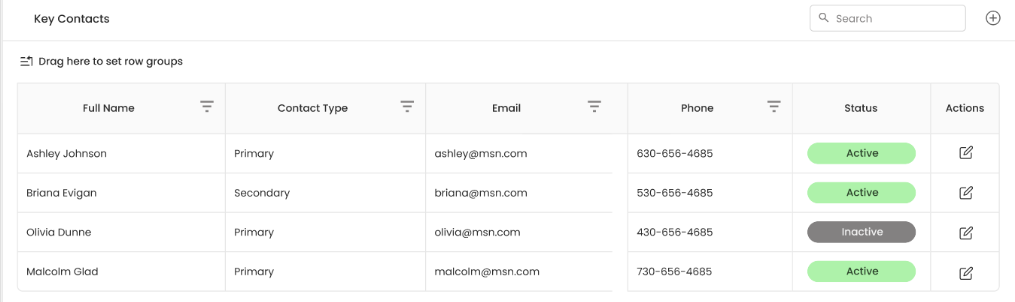
The grid includes the following details:
-
Full Name
-
Contact Type
-
Email
-
Phone
-
Status – Indicates whether the contact is Active (green) or Inactive (gray).
-
Actions – Edit option to modify contact details.
How to add a new key contact?
To add a new contact:
-
Click the "+" (Add Contact) button at the top right corner.
-
Enter the required contact details:
-
Full Name
-
Contact Type
-
Email
-
Phone Number
-
-
Click Save to add the contact to the grid.
How to edit an existing key contact?
To edit a key contact:
-
Locate the key contact in the grid.
-
Click the Edit icon in the Actions column.
-
Update the necessary fields.
-
Click Save to apply the changes.
How do I change the status of a key contact?
-
Click the Edit icon in the Actions column.
-
Update the Status field (Active/Inactive).
-
Click Save to confirm the change.
What happens if the key contact is marked as "Inactive"?
The contact remains in the grid but appears grayed out.