Entities - Basics
How can the user access the Entities Module?
- The user can navigate to the module by selecting "Entities" from the main menu.
What information is displayed in the data grid?
-
The entities data grid presents a list of all entities along with their attributes, based on the selected client and the applied global and local filters.
-
Filtering Criteria: The displayed entities are based on the selected tax year, scenario, and "As of Date."
What features are available in the entities data grid?
-
Users can drag column headers (e.g., Entity ID, "Status") into this area to group rows by the values in that column.
-
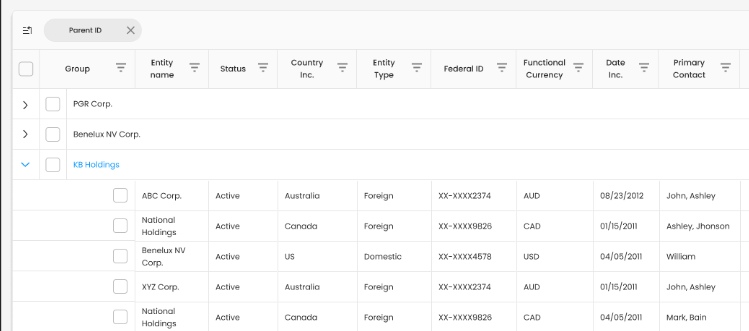
Once a column header is dropped into the grouping area, grid organizes the data into collapsible groups based on the column value.
- Additional features include column sorting, filtering, rearranging columns, and resizing columns
What permissions are required to view or manage entities?
-
Viewing Entities: All users have permission to view entities.
-
Adding/Editing Entities: All users, except those with read-only access, can add or edit entities in Compliance Cloud.
How to search for a specific entity in the Entities Module?
- Users can utilize the global search feature to find specific entities within the data grid.
How does the global filter affect the displayed entities?
-
Data retrieval in the grid is determined by both global and local filter settings.
-
The local filters within the entities screen reflect the applied global filters.
What are the available local filters, and how do they work?
-
The three available local filters are Tax Year, Scenario, and As of Date.
-
These filters are single-select and default to the values applied through the global filter.
-
The local filters display the tax years and scenarios that are assigned to the user.
-
Once a selection is changed, the grid updates accordingly.
What is the purpose of the "Actions" column?
- The "Actions" column allows users to manage entity records by providing options to view and edit them.
How to export entity data?
-
Users can export data by selecting the "Export to XLSX" option from the menu (sandwich icon).
-
The exported file contains the exported data, exactly as it appears in the data grid.
Who can add a new entity?
- Users with edit permissions (excluding read-only users) can add entities.
How can an entity be added in Compliance Cloud?
- Click the menu icon (sandwich icon) in the top-right corner of the Entities module and select "Add Entity."
What information is required to add a new entity?
Mandatory fields include Entity ID and Entity Name. Legal Entity Type, Country Incorporated, Acquisition Date.
How to add a new entity in Compliance Cloud?
-
Navigate to the Entities Module
- Click on the Entities tab from the main menu.
-
Access the Add Entity Form
-
Click the menu icon (sandwich icon) in the top-right corner.
-
Select "Add Entity".
-
-
Enter Entity Details
-
Fill in required fields such as:
-
Entity ID (mandatory)
-
Entity Name (mandatory)
-
Legal Entity Type
-
Country Incorporated
-
Acquisition Date
-
Effective Date
-
-
-
Proceed to Additional Information
- Navigate through tabs such as Entity Types, Incorporation Details, and Key Dates to provide further details.
-
Save the Entity
-
Click Continue to proceed.
-
Review the information and submit the form to add the entity into Compliance Cloud.
-
Is there an option to bulk import multiple entities instead of adding them manually?
- Yes, the "Import Entities" option allows bulk uploading of entity records.
What information is displayed when viewing an entity.?
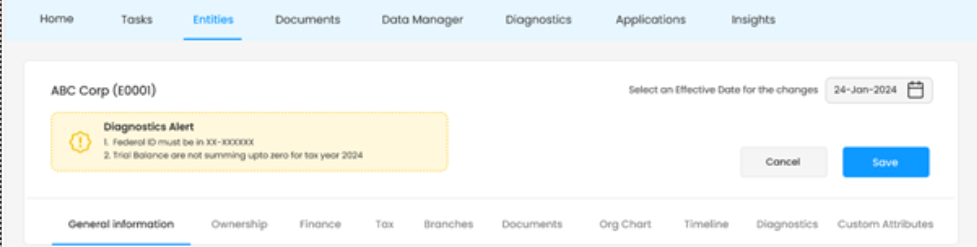
- Entity details include sections such as General Information, Ownership, Documents, and Custom Attributes.
How to edit an existing entity?
- Navigate to the Entities landing screen and select the Edit Entity option under the Actions column.
Which fields can be modified when editing an entity under General Information?
- All fields are editable except the Entity ID.
How can a user save changes after editing an entity?
- After making edits, users can save their changes by selecting the Save option from the entity header