All About Tasks
How to navigate to the Tasks?
- After successfully logging in to Compliance Cloud, the user must select Tasks from the main menu to access the Tasks module.
How to switch between My Tasks and All Tasks? What does each option signify?
-
Users can switch between two tabs to choose which tasks they want to view:
-
My Tasks: Displays all tasks that are either created by the user or assigned to them.
-
All Tasks: Displays all tasks created by different users within the organization in Compliance Cloud.
-
What actions can be performed on each task, and how?
-
Users can view, add and edit tasks
-
View/Edit: This can be done by clicking the ellipsis (three dots) under the Actions column.
-
Add Tasks: By clicking the “Add Tasks” under the sandwich icon present on the tasks landing screen.
What details can the user view from the tasks data grid?
The user can view the following details for each task which is as follows:
-
Tasks name
-
Tasks type
-
Entity Name
-
Tax Year
-
Period
-
Frequency
-
Start Date
-
End Date
-
Assigned To
-
Task Status
What are the different task statuses?
- Not Started, In-Progress, Completed and Past Due are the different task level statuses.
What does the "Past Due" status signify?
- The Past Due status indicates that the task or any of its steps has exceeded the specified due date. In such cases, both the task and the overdue step are marked as Past Due.
How to add new Task in Compliance Cloud?
Steps to Add a New Task:
-
Open the Tasks Module:
- Navigate to the Tasks tab from the main menu.
-
Initiate Task Creation:
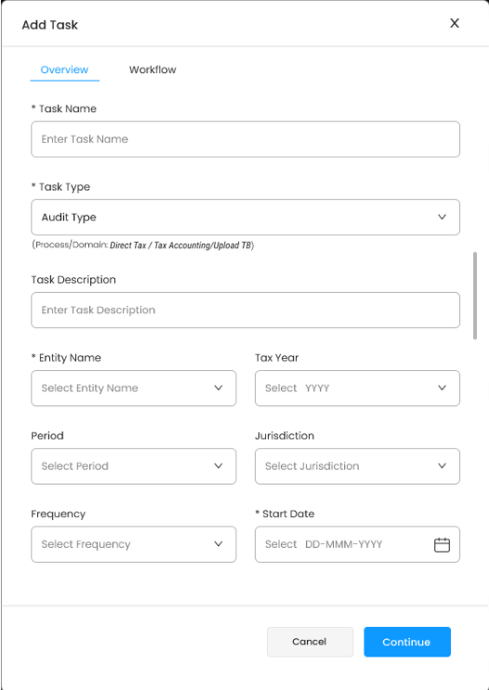
- Click the Add Task button to open the task creation form.
-
Fill in Task Details (Overview Tab):
-
Task Name (mandatory): Enter a clear, descriptive name for the task.
-
Task Type (mandatory): Select the appropriate task type from the dropdown.
-
Task Description (optional): Add any additional details about the task.
-
-
Entity and Tax Year:
-
Entity Name (mandatory): Select the entity associated with the task.
-
Tax Year: Choose the relevant tax year.
-
-
Period and Jurisdiction:
-
Period: Select the appropriate period (e.g., January, Q1, Yearly).
-
Jurisdiction: Choose the applicable jurisdiction, if required.
-
-
Frequency and Start Date:
-
Frequency: Select how often the task occurs (e.g., Monthly, Quarterly, Yearly).
-
Start Date (mandatory): Use the calendar picker to set the start date.
-
-
End Date and Assignment:
-
End Date (mandatory): Use the calendar picker to set the end date.
-
Assigned To: Select the user(s) responsible for the task.
-
If the Task Includes Workflow Steps:
-
Fill in the required details under the Workflow tab:
-
Step Name
-
Due Date
-
Assigned To
-
Save the Task:
- Click Continue to proceed or Cancel to discard the task creation process.
What information can be edited for a given task?
- Users can modify all the details under the Overview and Workflow tabs, except for the Task Type, which remains locked once the task is created.
How to Edit an Existing Task?
To edit an existing task, follow these steps:
-
Locate the Task: Go to the task landing screen and find the task you want to edit.
-
Select the Edit Option: Click the "Edit Entity" option under the "Actions" column.
Once selected, Compliance Cloud will display the task details in an editable mode.
-
All information under the Overview and Workflow tabs can be modified, except for the Task Type, which remains in editable.
-
After making the necessary changes, save the updated details.
What permissions are required to view or manage tasks?
-
Viewing Tasks: All users have permission to view Task.
-
Adding/Editing Entities: All users, except those with read-only access, can add or edit tasks in Compliance Cloud.
Does each step within a task have its own separate status?
- Yes, each step has its own status, which can be: Not Started, In-Progress, Completed, or Past Due. The Past Due status is applied only when a step has passed its due date.
Is there a way for a user to view the overall progress of a task and its associated steps?
-
Yes, when a user accesses the task view screen, the task progress stepper provides a visual representation of the overall progress. The stepper uses the following color codes:
-
Grey: Not Started
-
Blue: In-Progress
-
Green: Completed
-
Red: Past Due (when a step has exceeded its due date)
-
Can task be reassigned to a different user?
- Yes, tasks can be reassigned to another user with the necessary permissions by editing the task details.
How can a checklist item be marked as complete?
- To mark a checklist item as complete, click the checkbox under the "Is Complete?" column.
Can user extend the due date of a task?
- Users with the necessary permissions can edit the task details to update the due date.
Can a task exist without a checklist?
- Yes, if required in Compliance Cloud Tasks can exist without a checklist