Data Manager
How to locate Data Manager in Compliance Cloud?
To access the Data Manager module in Compliance Cloud:
-
Log in to Compliance Cloud with your credentials.
-
From the top navigation bar, locate and click on "Data Manager".
How to search for specific imports in Data Manager?
- Use the search bar in the top-right corner of the Data Manager screen to find specific imports based on keywords or names.
What information is displayed in the data grid?
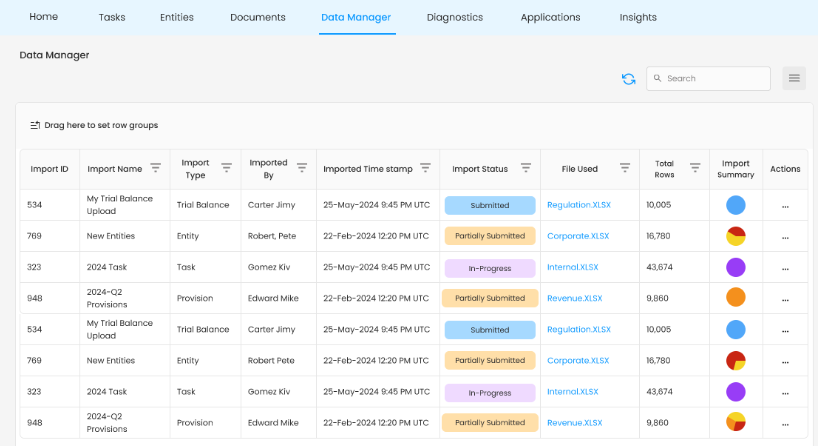
The Data Manager grid includes the following details:
-
Import ID – A unique identifier for each import.
-
Import Name – The name assigned to the import.
-
Import Type – The category of import (e.g., Trial Balance, Entity, Task, Provision).
-
Imported By – The user who performed the import.
-
Imported Timestamp – The date and time when the import was performed.
-
Import Status – The current status of the import (e.g., Submitted, Partially Submitted, In-Progress).
-
File Used – The name of the file used for the import.
-
Total Rows – The number of rows in the imported file.
-
Import Summary – A visual representation of the import summary using charts.
-
Actions – An options menu (⋮) for performing additional actions on the import.
How can users categorize imports by groups?
- In the data manager grid, use Drag and drop columns into the "Drag here to set row groups" option to organize the imports based on specific criteria.
How to initiate a new import?
-
Click the menu icon in the top-right corner.
-
Select the Import Type
-
Enter the required details in the New Import screen, including the Import Name, and select the appropriate Import Type (e.g., "Entity").
-
Apply relevant filters such as Tax Year and Scenario, then choose the file for upload.
-
Compliance Cloud will process the file, perform structural validations, and enable the upload option.
Who can initiate a new import and make edits?
-
Users with the appropriate access permissions can initiate imports and make edits.
-
All users, except those with read-only access, can perform these actions in Compliance Cloud.
From where can a user download the predefined templates?
- Users can download the templates by selecting the desired Import Type on the New Import screen.
What are the available statuses for imports, and what do they mean?
The import statuses are categorized into two types:
-
Overall Import Status:
-
In-Progress: The import process is ongoing.
-
Partially Submitted: Only part of the data has been successfully submitted.
-
Submitted: The import has been successfully completed.
-
Error: An issue occurred, preventing the import from completing.
-
-
Status During Data Processing:
-
Validating: The system is currently validating the data.
-
Validation Pending: The validation process has not yet started after edits have been made to the specific row.
-
Validation Failed: The data failed to pass validation checks.
-
Validation Successful: The data passed all validation checks successfully.
-
Duplicate: Duplicate records were found in the data.
-
Error: An error occurred while processing the data.
-
What do color-coded indicators represent in the import summary column in the data grid?
- The color-coded pie chart visually represents various data statuses, such as Validation Successful, Validation Failed, Duplicates, Validating, and Errors, offering a quick overview of the import's status.
Where can the user view details for a specific import?
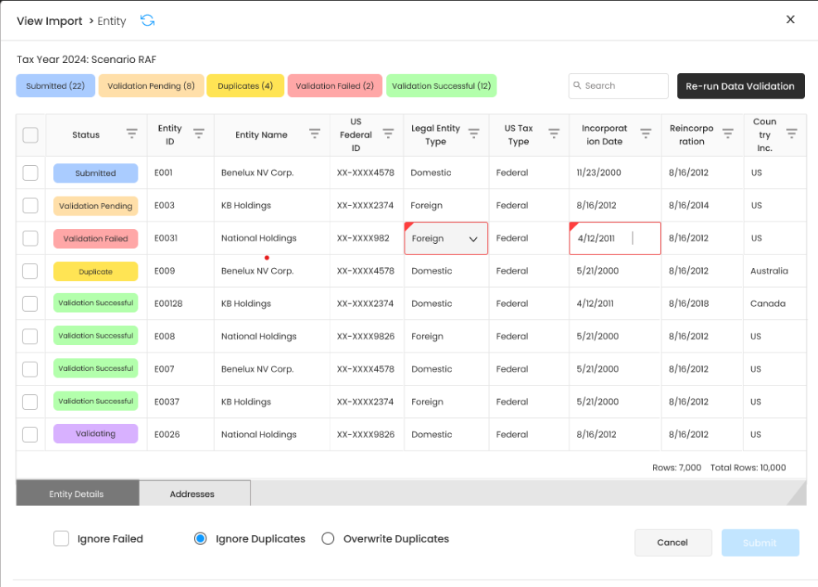
- Click on the View Import option under Actions column to open the import details, which show the validation results.
How to re-run data validation for an import?
- Open the import details and click on the "Re-run Data Validation" button.
How to edit import details?
- Navigate to View Import, Compliance Cloud will display the imported data in an editable grid, allowing users to make the necessary changes.
What actions can be taken if there are validation errors?
- You can choose to ignore failed records, ignore duplicates, or overwrite duplicates using the options available at the bottom of the validation details.
How to handle duplicate records?
- In the import detail's view, select either "Ignore Duplicates" or "Overwrite Duplicates" before submitting.
What can be done if an import has a "Validation Failed" status?
- Open the import details, identify the fields marked with red borders, correct the issues, and re-run the validation.
What file formats are supported for import?
- The system supports Excel (.XLSX) formats for data imports.
How can I re-run data validation for all records?
- Click the "Re-run Data Validation" button in the import details view. Compliance Cloud will identify all records marked as Validation Pending and re-run the validation process for those records.
Can user delete an imported file?
- No, imported records cannot be deleted, but you can either re-upload a corrected file or make edits to the existing data if necessary.
What happens if a user navigates away from the Data Manager screen while validation is in progress?
- The validation process continues in the background, and the updated status will reflect when you return to the data manager landing screen or upon refreshing the data grid.
How can a user resolve validation errors?
If your file has validation errors:
-
Navigate to View Import
-
Correct the issues in the data grid.
-
Select re-run data validation option.
What happens if a technical glitch occurs?
- If a technical glitch occurs during the import process, Compliance Cloud will halt the operation and mark the import with the status "Error." An error message will be displayed.
What should I do if my import is stuck in "In-Progress" status?
If an import remains in In-Progress for an extended period:
-
Refresh the page to check for updates.
-
Ensure there are no connectivity issues.
-
If the issue persists, contact system support.
Is there a file size limit for uploads?
Yes, up to 200MB. If your file is too large, consider breaking it into smaller parts.
What happens if a partially submitted import is not corrected?
- Partially submitted imports contain errors that need to be fixed. If left uncorrected, incomplete data may affect reporting and compliance processes.