Add and Edit Addresses
What details are displayed in the Addresses Grid?
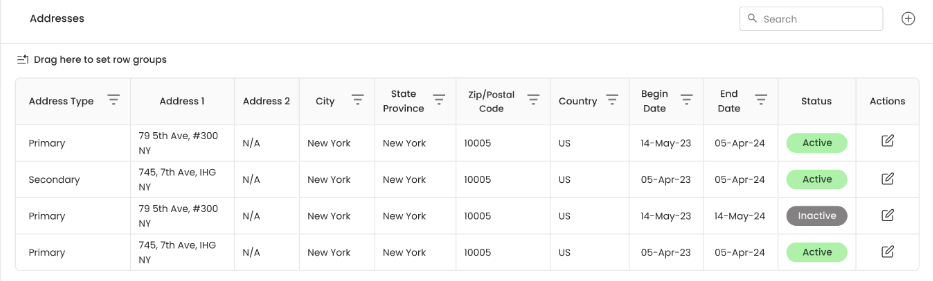
The grid includes the following details:
-
Address Type
-
Address 1
-
Address 2
-
City
-
State/Province
-
Zip/Postal Code
-
Country
-
Begin Date – The date when the address became active.
-
End Date – The date when the address is no longer valid.
-
Status – Indicates whether the address is Active (green) or Inactive (gray).
-
Actions – Edit option to modify address details.
How do I add a new address?
To add a new address:
-
Click the "+" (Add Address) button at the top right corner.
-
Enter the required address details:
-
Address Type (Primary/Secondary)
-
Address 1 (Street and unit details)
-
City, State/Province, Zip Code, and Country
-
Begin Date and End Date
-
-
Click Save to add the address to the grid.
How do I edit an existing address?
To edit an address:
-
Locate the address in the grid.
-
Click the Edit icon in the Actions column.
-
Update the necessary fields.
-
Click Save to apply the changes.
How do I change the status of an address?
-
Click the Edit icon next to the address.
-
Update the Status field (Active/Inactive).
-
Click Save to confirm the change.
What happens if the address is marked as "Inactive"?
-
The address remains in the grid but appears grayed out.
-
You can reactivate them anytime by changing their status back to Active.